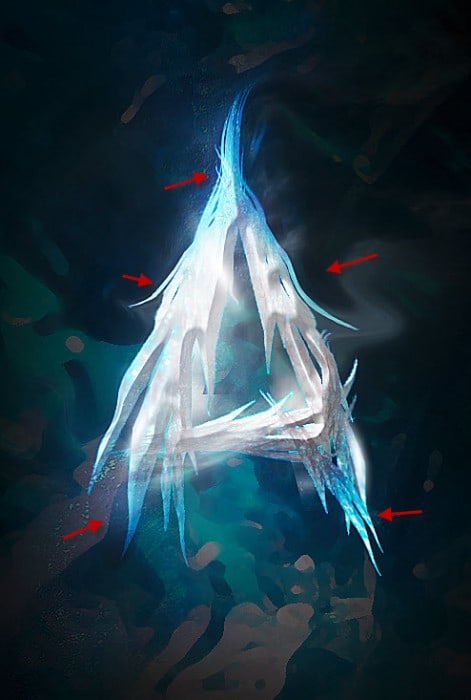
هنا هو معاينة التأثير النهائي لدي لهذا البرنامج التعليمي: (انقر للتكبير)
ملاحظة: إذا كان لديك صعوبة في الخطوة 3 و 4، شاهد الفيديو أدناه:
VIDEO
<iframe src="http://www.youtube.com/embed/UlS14lYjNCw" frameborder="0" width="500" height="281">
الادوات: الجليد حزمة الملمس
الخطوة 1
إنشاء
مستند جديد بحجم 1120px 700px * مع خلفية سوداء، وتحميل واحد من هذا الملمس الجليد. استخدام أداة مستطيلة لتحديد جزء من ذلك:
<img class="alignnone size-medium wp-image-14987" title="1 sel" src="http://cdn5.psdvault.com/img/2012/10/1-sel1-500x413.jpg" alt="1 sel1 500x413 Create a Frozen Text Effect with Ice Particles in Photoshop" width="500" height="413" />
نسخ ولصق التحديد على وثيقتنا (تغيير إذا لزم الأمر)، وتطبيق ما يلي "الفرشاة الجافة" تصفية وضع لذلك:
<img class="alignnone size-medium wp-image-14984" title="1 dry brush" src="http://cdn6.psdvault.com/img/2012/10/1-dry-brush-500x268.jpg" alt="1 dry brush 500x268 Create a Frozen Text Effect with Ice Particles in Photoshop" width="500" height="268" />
وسوف يكون له تأثير التالية حتى الآن:
<img class="alignnone size-medium wp-image-14985" title="1 effect" src="http://cdn6.psdvault.com/img/2012/10/1-effect2-432x700.jpg" alt="1 effect2 432x700 Create a Frozen Text Effect with Ice Particles in Photoshop" width="432" height="700" />
محو المنطقة التالية مع ممحاة لينة:
<img class="alignnone size-medium wp-image-14986" title="1 erase" src="http://cdn5.psdvault.com/img/2012/10/1-erase-427x700.jpg" alt="1 erase 427x700 Create a Frozen Text Effect with Ice Particles in Photoshop" width="427" height="700" />
الخطوة 2
ملآحظ مهمة جدا : عندما تتطبق التأثير الاول اسفل (اول صورة) يجب عليك دمج التأثير مع الصور(Ctrl+R) اذا لم تفعل ذالك لن يتتطبق التأثير عندما تتطبق التأثير الثاني (الصورة الثانية) .
إضافة طبقات التعديل التالي على رأس هذه الطبقة الملمس:
انتقائية اللون
<img class="alignnone size-full wp-image-14990" title="2 cyans" src="http://cdn4.psdvault.com/img/2012/10/2-cyans.jpg" alt="2 cyans Create a Frozen Text Effect with Ice Particles in Photoshop" width="210" height="437" />
<img class="alignnone size-full wp-image-14988" title="2 blues" src="http://cdn6.psdvault.com/img/2012/10/2-blues.jpg" alt="2 blues Create a Frozen Text Effect with Ice Particles in Photoshop" width="208" height="434" />
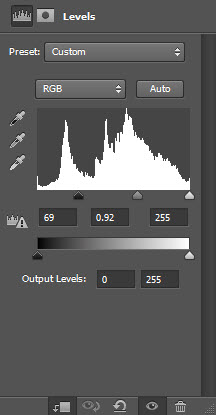
مستويات
<img class="alignnone size-full wp-image-14992" title="2 lves" src="http://cdn6.psdvault.com/img/2012/10/2-lves1.jpg" alt="2 lves1 Create a Frozen Text Effect with Ice Particles in Photoshop" width="216" height="415" />
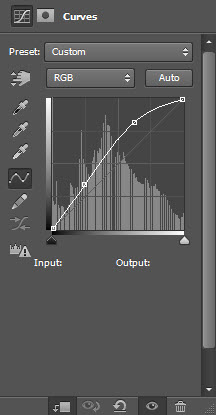
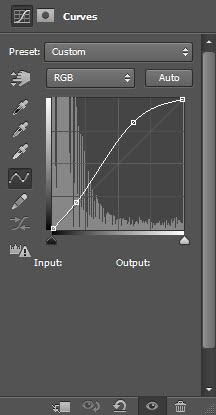
منحنيات
<img class="alignnone size-full wp-image-14989" title="2 curves" src="http://cdn5.psdvault.com/img/2012/10/2-curves.jpg" alt="2 curves Create a Frozen Text Effect with Ice Particles in Photoshop" width="216" height="415" />
وسيكون لديك ما يلي:
<img class="alignnone size-medium wp-image-14991" title="2 effect" src="http://cdn6.psdvault.com/img/2012/10/2-effect1-438x700.jpg" alt="2 effect1 438x700 Create a Frozen Text Effect with Ice Particles in Photoshop" width="438" height="700" />
الخطوة 3
كتابة حرف في الوسط:
<img class="alignnone size-full wp-image-14999" title="3 types" src="http://cdn5.psdvault.com/img/2012/10/3-types.jpg" alt="3 types Create a Frozen Text Effect with Ice Particles in Photoshop" width="443" height="666" />
سوف نقوم بإضافة بعض الملمس الجليد على النص - اختيار أداة لاسو متعدد الأضلاع:
<img class="alignnone size-full wp-image-14997" title="3 poly" src="http://cdn4.psdvault.com/img/2012/10/3-poly.jpg" alt="3 poly Create a Frozen Text Effect with Ice Particles in Photoshop" width="330" height="316" />
تحديد جزء كما هو مبين أدناه:
<img class="alignnone size-medium wp-image-14998" title="3 sel" src="http://cdn5.psdvault.com/img/2012/10/3-sel-500x266.jpg" alt="3 sel 500x266 Create a Frozen Text Effect with Ice Particles in Photoshop" width="500" height="266" />
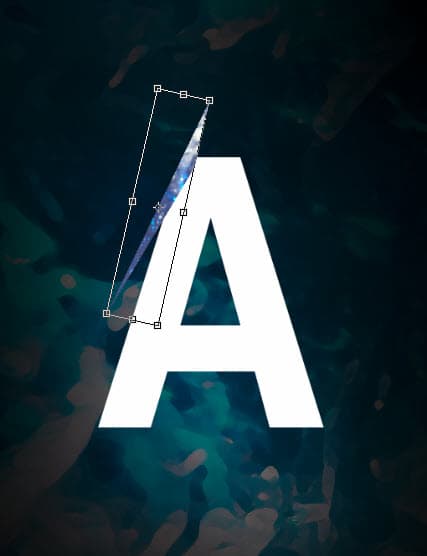
نسخ ولصق التحديد على الحرف، وتناوب بتغيير اختيار كما هو موضح أدناه:
<img class="alignnone size-full wp-image-14993" title="3 attach" src="http://cdn4.psdvault.com/img/2012/10/3-attach.jpg" alt="3 attach Create a Frozen Text Effect with Ice Particles in Photoshop" width="427" height="556" />
تكرار هذه الطبقة عدة مرات وتغيير حجمها والجمع بينهما معا كما هو مبين أدناه:
<img class="alignnone size-full wp-image-14995" title="3 dup" src="http://cdn5.psdvault.com/img/2012/10/3-dup.jpg" alt="3 dup Create a Frozen Text Effect with Ice Particles in Photoshop" width="489" height="564" />
دمج الطبقات تكرار، ثم نقلها إلى اليمين والوسط من النص:
<img class="alignnone size-full wp-image-14994" title="3 dup 2" src="http://cdn5.psdvault.com/img/2012/10/3-dup-2.jpg" alt="3 dup 2 Create a Frozen Text Effect with Ice Particles in Photoshop" width="455" height="557" />
نعود إلى طبقة النص الأصلي واستخدام ممحاة ناعمة لإزالة بعض أجزاء منه:
<img class="alignnone size-medium wp-image-14996" title="3 erase" src="http://cdn6.psdvault.com/img/2012/10/3-erase-500x459.jpg" alt="3 erase 500x459 Create a Frozen Text Effect with Ice Particles in Photoshop" width="500" height="459" />
الخطوة 4
دمج جميع هذه الطبقات الجليدية الملمس، ثم تطبيق الخيارات مزج طبقة التالية لهذه الطبقة المدمجة:
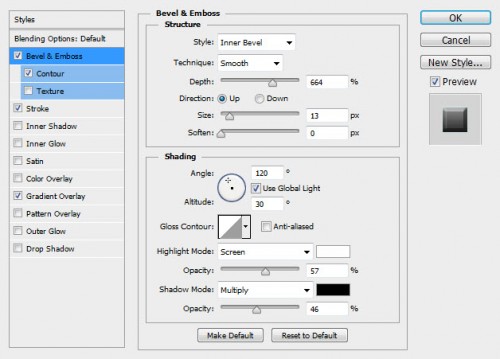
شطبة ومزخرف
<img class="alignnone size-medium wp-image-15000" title="4 bevel" src="http://cdn4.psdvault.com/img/2012/10/4-bevel-500x359.jpg" alt="4 bevel 500x359 Create a Frozen Text Effect with Ice Particles in Photoshop" width="500" height="359" />
كفاف
<img class="alignnone size-medium wp-image-15001" title="4 contour" src="http://cdn4.psdvault.com/img/2012/10/4-contour-500x359.jpg" alt="4 contour 500x359 Create a Frozen Text Effect with Ice Particles in Photoshop" width="500" height="359" />
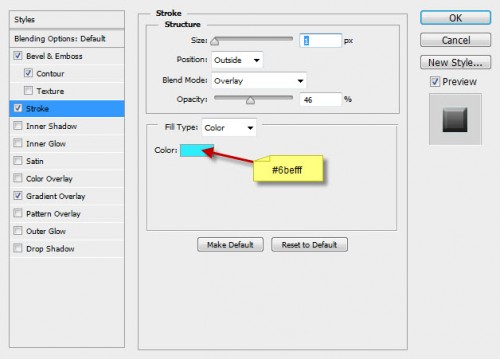
السكتة الدماغية
<img class="alignnone size-medium wp-image-15004" title="4 stroke" src="http://cdn4.psdvault.com/img/2012/10/4-stroke-500x359.jpg" alt="4 stroke 500x359 Create a Frozen Text Effect with Ice Particles in Photoshop" width="500" height="359" />
تراكب الانحدار
<img class="alignnone size-medium wp-image-15003" title="4 overlay" src="http://cdn5.psdvault.com/img/2012/10/4-overlay-500x359.jpg" alt="4 overlay 500x359 Create a Frozen Text Effect with Ice Particles in Photoshop" width="500" height="359" />
وسيكون لديك ما يلي:
<img class="alignnone size-medium wp-image-15002" title="4 effect" src="http://cdn6.psdvault.com/img/2012/10/4-effect2-469x700.jpg" alt="4 effect2 469x700 Create a Frozen Text Effect with Ice Particles in Photoshop" width="469" height="700" />
الخطوة 5
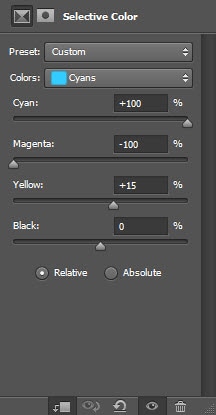
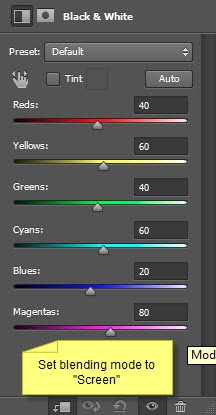
إضافة طبقات التكيف التالية كما قطة قناع لهذه الطبقة الملمس المدمجة:
انتقائية اللون
ملاحظة مهمة: في هذا التأثير يجب عليك دمج التأثير مع الخط في كل مرة تعمل فيها ومن ثم تنتقل الى التأثير الثانية وتدمج مع الخط ... الخ
<img class="alignnone size-full wp-image-15008" title="5 cyan" src="http://cdn4.psdvault.com/img/2012/10/5-cyan.jpg" alt="5 cyan Create a Frozen Text Effect with Ice Particles in Photoshop" width="216" height="415" />
<img class="alignnone size-full wp-image-15005" title="5 blues" src="http://cdn4.psdvault.com/img/2012/10/5-blues.jpg" alt="5 blues Create a Frozen Text Effect with Ice Particles in Photoshop" width="216" height="415" />
<img class="alignnone size-full wp-image-15009" title="5 neu" src="http://cdn5.psdvault.com/img/2012/10/5-neu.jpg" alt="5 neu Create a Frozen Text Effect with Ice Particles in Photoshop" width="216" height="415" />
الأسود والأبيض
<img class="alignnone size-full wp-image-15006" title="5 bw" src="http://cdn4.psdvault.com/img/2012/10/5-bw.jpg" alt="5 bw Create a Frozen Text Effect with Ice Particles in Photoshop" width="216" height="415" />
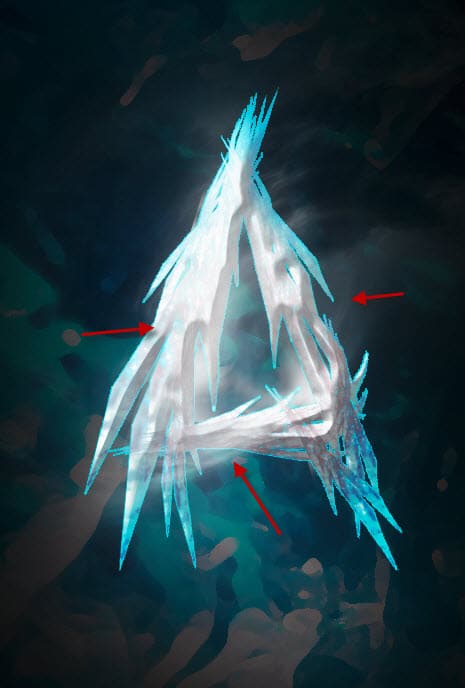
وسيكون لديك ما يلي:
<img class="alignnone size-full wp-image-15007" title="5 cloud" src="http://cdn4.psdvault.com/img/2012/10/5-cloud.jpg" alt="5 cloud Create a Frozen Text Effect with Ice Particles in Photoshop" width="465" height="688" />
الخطوة 6
سوف نقوم بإضافة بعض
تأثير الجسيمات لهذا النص. تحميل آخر الملمس "كريم-02-بواسطة lilystox" في فوتوشوب واستخدام 30px الريش أداة لاسو لرسم مجموعة صغيرة كما هو مبين أدناه:
<img class="alignnone size-medium wp-image-15014" title="6 particles" src="http://cdn6.psdvault.com/img/2012/10/6-particles-500x308.jpg" alt="6 particles 500x308 Create a Frozen Text Effect with Ice Particles in Photoshop" width="500" height="308" />
نسخ ولصق التحديد لأكثر من وثيقتنا، تغيير حجم وتغيير طريقة مزج إلى "تراكب". تكرار هذه الطبقة مرتين ونقلها إلى أجزاء مختلفة من النص كما هو مبين أدناه:
<img class="alignnone size-medium wp-image-15015" title="6 set blending" src="http://cdn5.psdvault.com/img/2012/10/6-set-blending-500x563.jpg" alt="6 set blending 500x563 Create a Frozen Text Effect with Ice Particles in Photoshop" width="500" height="563" />
ونحن على وشك الانتهاء! تتسطح الصورة وتكرار طبقة الخلفية، واستخدام فلتر التسييل جدا لإضافة بعض التأثير المتدفقة كما هو مبين أدناه على هذه الطبقة الجديدة:
<img class="alignnone size-medium wp-image-15013" title="6 liquify" src="http://cdn4.psdvault.com/img/2012/10/6-liquify-471x700.jpg" alt="6 liquify 471x700 Create a Frozen Text Effect with Ice Particles in Photoshop" width="471" height="700" />
وأضفت ما يلي طبقات التعديل 2 إلى صقل الألوان:
الرصيد لون
<img class="alignnone size-full wp-image-15011" title="6 col mid" src="http://cdn4.psdvault.com/img/2012/10/6-col-mid.jpg" alt="6 col mid Create a Frozen Text Effect with Ice Particles in Photoshop" width="216" height="415" />
<img class="alignnone size-full wp-image-15010" title="6 col hig" src="http://cdn5.psdvault.com/img/2012/10/6-col-hig.jpg" alt="6 col hig Create a Frozen Text Effect with Ice Particles in Photoshop" width="216" height="415" />
منحنيات
<img class="alignnone size-full wp-image-15012" title="6 curves" src="http://cdn6.psdvault.com/img/2012/10/6-curves.jpg" alt="6 curves Create a Frozen Text Effect with Ice Particles in Photoshop" width="216" height="415" />
وسوف يكون له تأثير النهائية التالية: (انقر للتكبير)
Experience PS درس تصميم نص جليدي
درس تصميم نص جليدي
درس تصميم نص جليدي
درس تصميم نص جليدي

















0 التعليقات